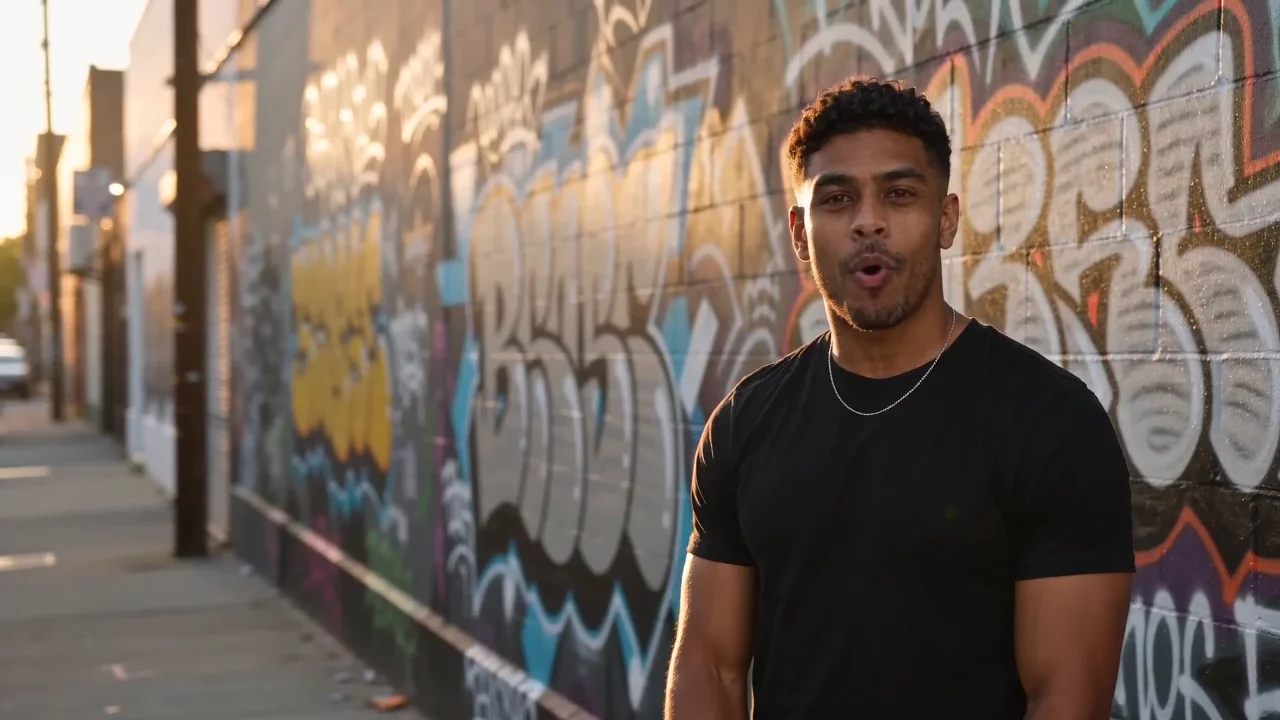
An AI rap video starts with one or two photos, a visual style and an optional idea. The current creator offers 5, 10 and 15 seconds, five styles and twenty optional scene ideas. This guide reflects the creator as of November 5, 2026. Available generation options depend on the service configuration shown in the form.
1. What photos do you need for an AI rap video?
Start with one clear photo for a solo rap video or two reference photos for a duo. Use images you have permission to use, and make sure any real people shown are consenting adults.
Use one photo per lead, up to two photos. One photo creates a solo setup; add a different subject in the second slot for a duo. A clear, well-lit portrait with space around the head and shoulders is a useful starting point. You must have permission to use the images; any real people shown must be consenting adults.
Choose JPG, PNG or WebP. HEIC/HEIF can be converted when your browser supports decoding it; otherwise export a JPG first. Images need to be at least 300 pixels wide and tall. The browser prepares image size and orientation. The portrait-focused thumbnail does not mean the original composition has been cropped for generation.
When signed in and generation is enabled, selected photos are automatically screened and privately uploaded. Wait for each photo's success check; use replace or retry if needed. The permission checkbox is still required before generation. Preparing settings or uploading a photo does not itself start a video task or spend video credits.
2. Which rap style and scene should you choose?
Choose the style that matches the performance you want, then select a scene or leave it unspecified. EasyRapVideo offers five styles with four optional scenes each.
The creator's five current styles are:
- Street Rap: grounded street performances, graffiti, city nights and friendly battles.
- Trap: dramatic lighting, controlled gestures and polished framing.
- Old School: warm retro hip-hop settings and relaxed movement.
- Funny Rap: playful character performances and visual jokes.
- Anime Rap: illustrated or animated performance settings.
Each style has four scene choices, for twenty scenes in total. Select one, or choose No scene to use your own setting. Scene selection is optional; the chosen style still guides the performance. Style and scene images illustrate a direction, not a guaranteed output.
For a first attempt, try Street Rap with Graffiti session. For a duo, supply two photos rather than asking the prompt to invent a second lead. Cat and dog scenes in Funny Rap call for matching animal references, not a promise to turn a human portrait into a pet.
3. How do you write an AI rap video idea?
Describe one topic, a simple action and the mood you want. Short original lyrics are optional, but exact words and lip sync are not guaranteed.
Your idea is optional and accepts up to 1,500 characters. Leave it blank to let the style lead, or describe a topic, a personal story, a setting, a simple action or a few lines of lyrics. The expand-editor button gives you more writing space. For example: “A birthday shout-out to Maya, celebrating her first marathon, with a confident smile and one small hand gesture.”
Topic shortcuts include Birthday, Best friends, Big win and My business, with more topics available. You can add an optional name and personal detail. When the AI assistant is enabled, use Refine idea for existing text or request inspiration. Review the suggestion first: your text changes only after Use this idea. If suggestions are unavailable, you can still write directly.
Short lyrics are creative instructions, not a word-by-word lyric editor. State your preferred language and keep the excerpt short enough for the clip. Exact words, delivery and lip sync are not guaranteed. Supplying a long verse does not extend the selected duration.
4. How do you choose audio, length and video format?
Select a 5-, 10- or 15-second clip, a supported aspect ratio and a quality tier. Lite includes AI audio; Standard and HD can request a silent video.
Generate audio requests AI rap vocals and music. It is always on with Lite. With Standard or HD, you can turn it off to request a silent video and add audio later in another editor. With audio on, Music style offers Match my style, Trap, Boom Bap, Drill, Lo-fi, Melodic Rap and Playful Rap. This sound choice is separate from the visual style.
In Video settings, choose:
- Duration: 5, 10 or 15 seconds. A fresh creator starts at 15 seconds; a saved draft may restore another supported choice. New 20-, 25- and 30-second videos are not currently offered.
- Format: vertical 9:16, landscape 16:9, classic 4:3 or square 1:1.
- Quality: Lite — 480p, 4 credits/second; Standard — 480p, 12 credits/second; HD — 720p, 25 credits/second.
For 15 seconds, those rates total 60, 180 and 375 credits respectively. Aspect ratio and switching audio on or off do not change the rate. Dimmed choices are unavailable under the current service configuration; review the total shown before confirming. Site credits are not dollar prices.
The current creator does not accept music uploads, reference-audio files or Suno/Udio links. It does not provide full-song conversion, voice cloning or a per-person lyric timeline.
5. How do you generate and download your rap video?
Review your photos, permissions, settings and credit total before confirming. Once generation succeeds, you can play or download the MP4 from My Videos.
Check your photos, idea, style, scene, audio, duration, format and credit total in the review step. Confirm image permission and sign in when prompted. A paid video task starts only after the final generation confirmation, when the service and your selected options are available and your balance is sufficient.
Use My Videos to follow an accepted task after refreshing or leaving the page. If the status is still processing or uncertain, check that task rather than submitting a duplicate. Confirmed failed generations return the spent task credits; a delay alone does not establish failure.
Open a successful video's private detail page to watch it and download the MP4. The detail page shows the final submitted idea and saved generation settings. Watch the entire clip for faces, motion, audio and lip sync before sharing; the requested settings and cover illustrations are not proof of output quality.
Start in the AI Rap Video Generator, browse the five-style prompt guide, or read the common questions and privacy practices.